Say you run an office cleaning business and someone asks ChatGPT who handles weekly cleaning near Northborough. If your business comes up, the next questions are pretty ordinary. Do you clean offices their size? Do you work in their town? How can they get an estimate?
Those are the questions I’d start with. On November 10, OpenAI launched Businesses in ChatGPT in beta. It gives eligible businesses a way to claim a profile and keep information about what they offer up to date. If you already maintain a Google Business Profile, that part will sound familiar. This is a separate profile for ChatGPT. OpenAI’s launch announcement
What can you do in Business Hub?
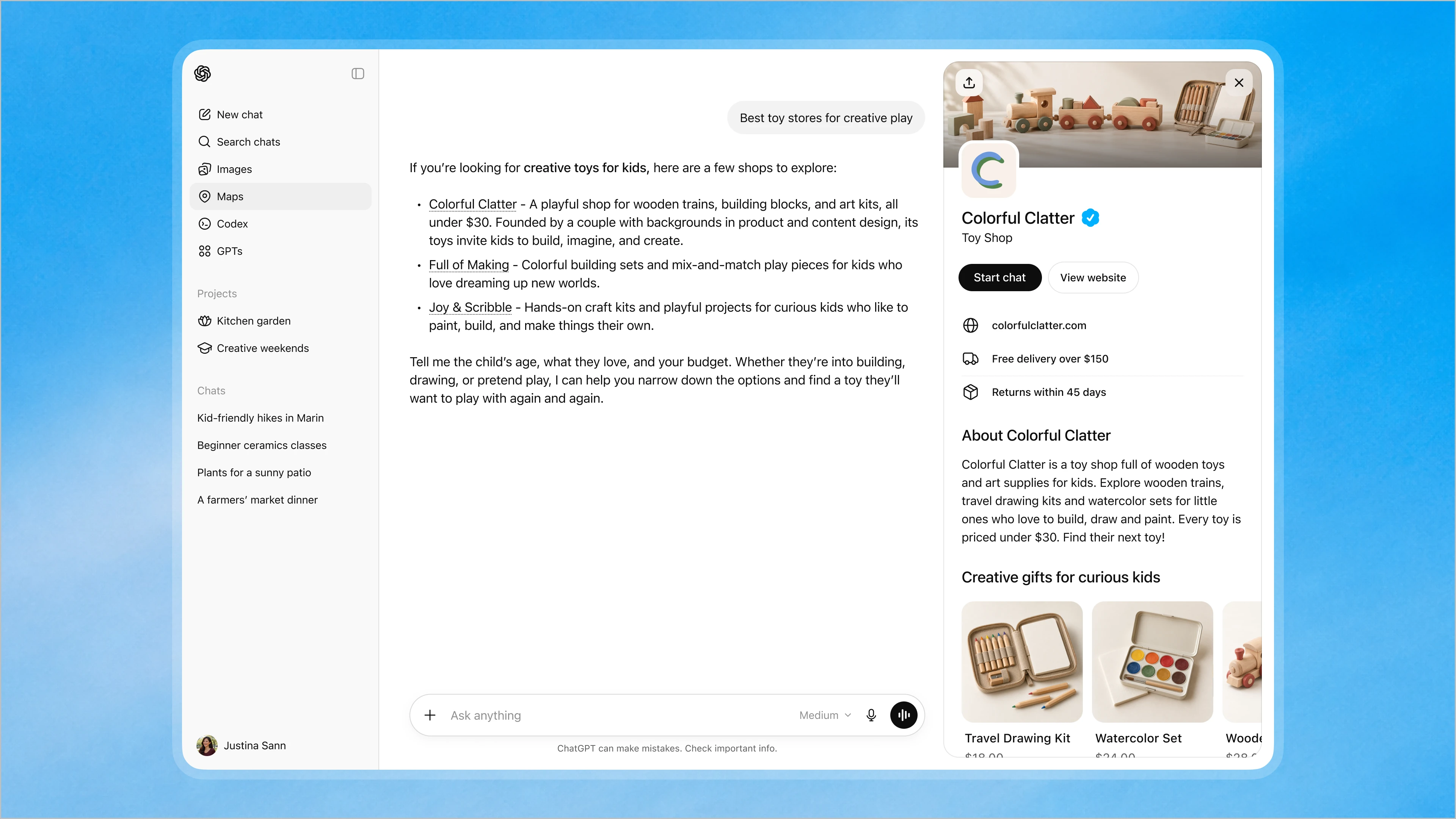
Business Hub is where you can look up and claim your business. Once approved and verified, you can manage details such as your website, business description, category and logo. Retailers can also share product information, including pricing and availability, through a feed. OpenAI says ChatGPT continues to make its own recommendations and comparisons. OpenAI’s Business Hub overview
There’s a separate feature called a Business Agent. It lets a customer choose to chat with a business about what it offers. At launch, it’s available to eligible U.S. ecommerce and online service businesses. If you run a local business that works in person, I’d start by checking what you can do with the profile itself. OpenAI’s setup guide
Start by looking up the business you actually run
Search for your business by name in Business Hub. Check that the website and details match yours before you claim anything. The options depend on the type of business you operate and where you’re based. OpenAI’s setup guide says local stores and restaurants can currently claim only an existing U.S. listing. Some eligible online businesses may see an option to add a business. OpenAI’s eligibility and verification guidance
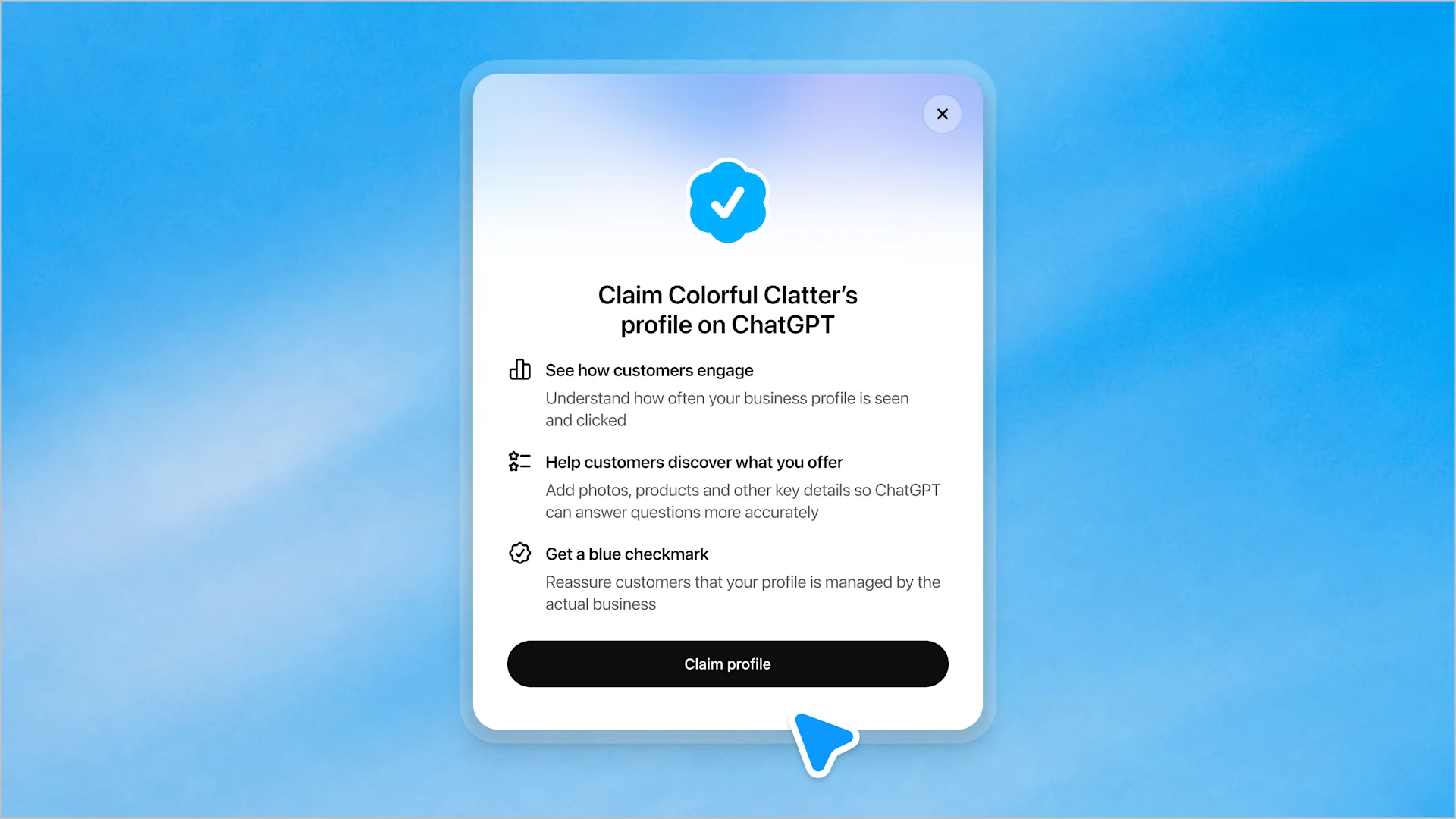
OpenAI describes a claim process followed by identity verification before you can publish changes or view insights. If you’re creating a new profile through its Persona verification process, approval can publish that profile automatically. Have your public details ready before you get to that point. OpenAI’s setup guide
Give customers a page that answers their questions
I’d pull up the page you want people to visit and read it from a customer’s point of view. A person looking for weekly office cleaning needs to know whether you offer recurring work, which towns you serve and how you put together an estimate. “We provide exceptional service” doesn’t answer any of those questions.
The page also needs a way for someone to take the next step. If you have a form to request an estimate, try it on your phone. Check that the request reaches whoever will reply. That helps customers whether they come from ChatGPT, Google or a recommendation from a friend.
We walked through a related question in our last article, Can Customers Find You If They Don’t Know Your Name?. Once someone finds you by the work you do, give them enough information to decide whether to call or send a request.
How would you know if it’s bringing you work?
OpenAI says Business Hub can report mentions and website clicks once there’s enough activity to meet its reporting thresholds. Those numbers can help you see whether people are finding you and visiting your site. To understand what happened after the visit, look at your website measurement and the inquiries your business received. OpenAI’s explanation of Business Hub insights
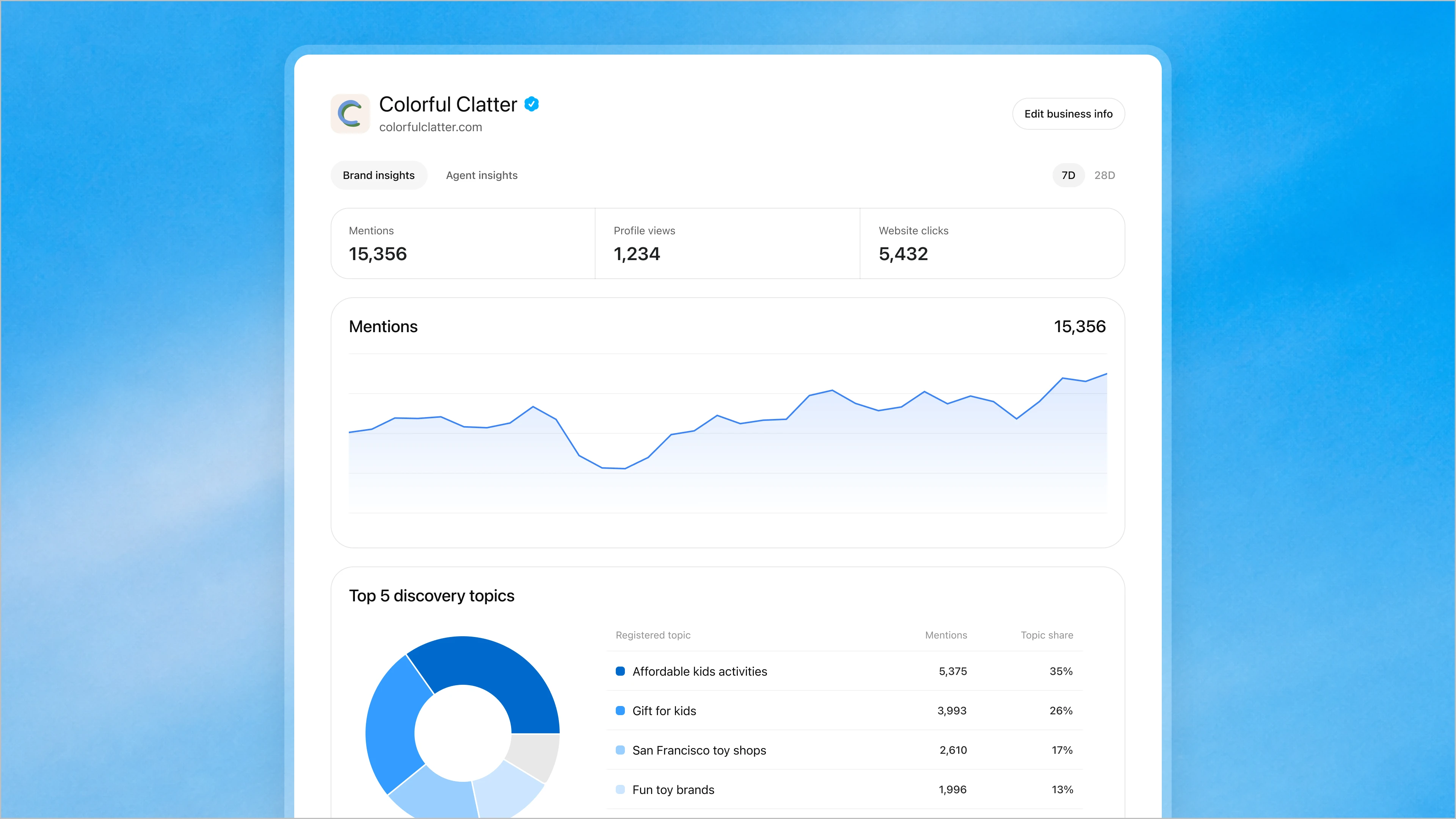
We’ve been working on this on our own site. We set up and tested our analytics so a consultation request is counted after the website accepts and saves the form. We track clicks on the consultation link separately. A click shows interest. A request gives us something to follow up on.
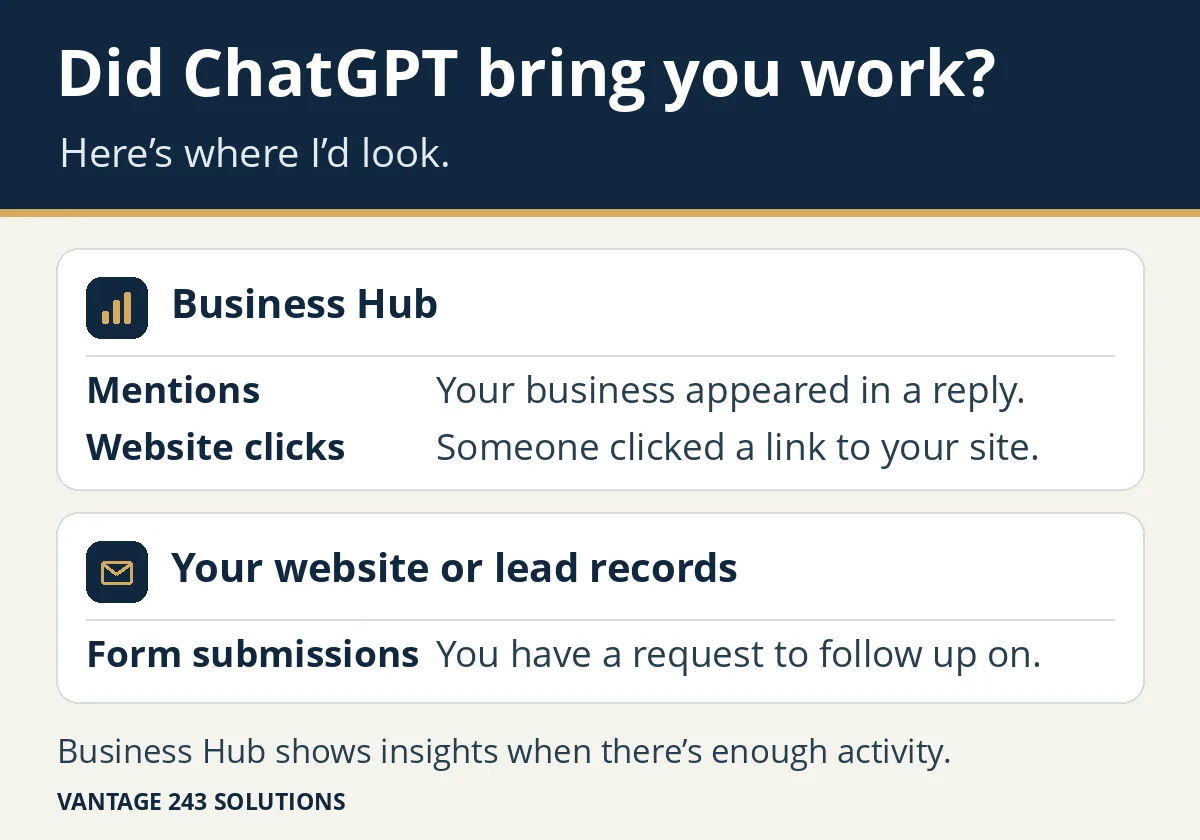
From there, I’d want to know if the requests are for work we can help with. A report can show more visits while the same questions or mismatched inquiries keep coming in. That’s a good reason to look at how the service is described and which page visitors are landing on. Our article on where your leads are going explains how to check what happens from the first click to the first reply.
If you have time for one thing today, look up your business and read the page a customer would land on. If the service, area or next step needs a clearer explanation, you’ve found something you can fix on your own site today. If you’d like help deciding where to start, our Digital Presence Snapshot looks at how people find, understand and contact your business.
Featured image: AI-generated editorial illustration.