Say a customer needs a brake inspection Friday afternoon. They ask Google Maps where they can get one. Your shop has room for a 2 p.m. drop-off, and the technician will get to the car later. If the customer can only stay for an hour, that detail matters before they make the trip.
On November 16, 2026, Google began rolling out appointment finding in Ask Maps on Android and iPhone, starting in the U.S. A customer can ask for openings in beauty, pet care, auto repair, or home repair. Ask Maps can look online and, if the customer allows it, call businesses to check details such as availability. See Google’s announcement and demo.
If you run one of these businesses, I’d start with an appointment you handle every week. Open the page where customers request it, then ask the person who answers the phone what they’d say about an opening. See whether a customer would make the same plans based on either answer.
Try the search your customer would use
Open Google Maps on your phone and look for Ask Maps under the search bar. Try a question a customer might ask, like “Where can I get a brake inspection near me Friday afternoon?” Send it and look for Check for me. If you’re testing this for your business, type “don’t call” and send it. Google will look online. Check the service, location, and time before you tap Looks good.
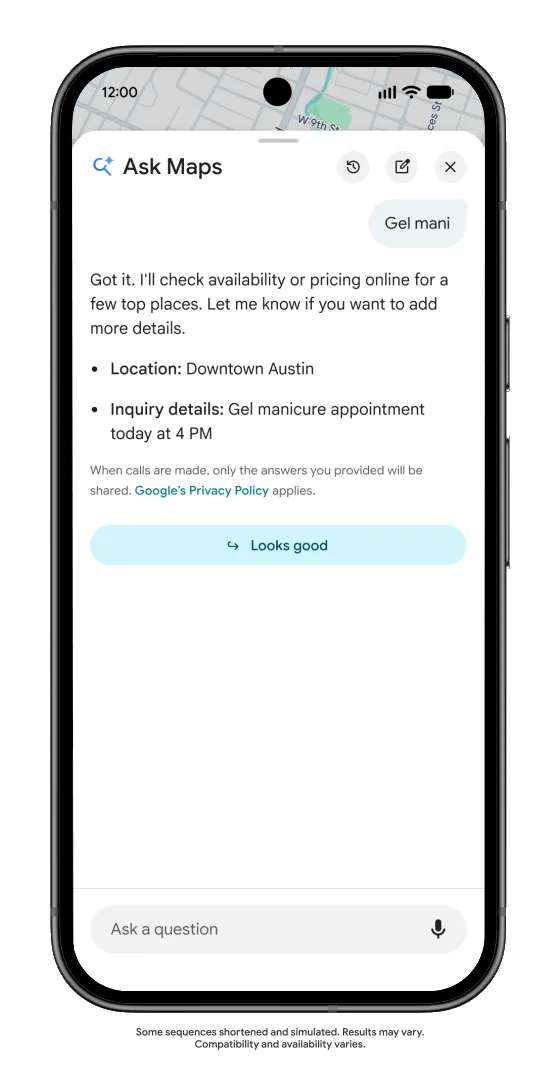
When the results are ready, look at what somebody can actually do from there. Google’s demo shows the available times and a separate Book now button. If your business shows up, try the link and see if it leads to the right service. Can you tell from the page what happens after you choose a time?
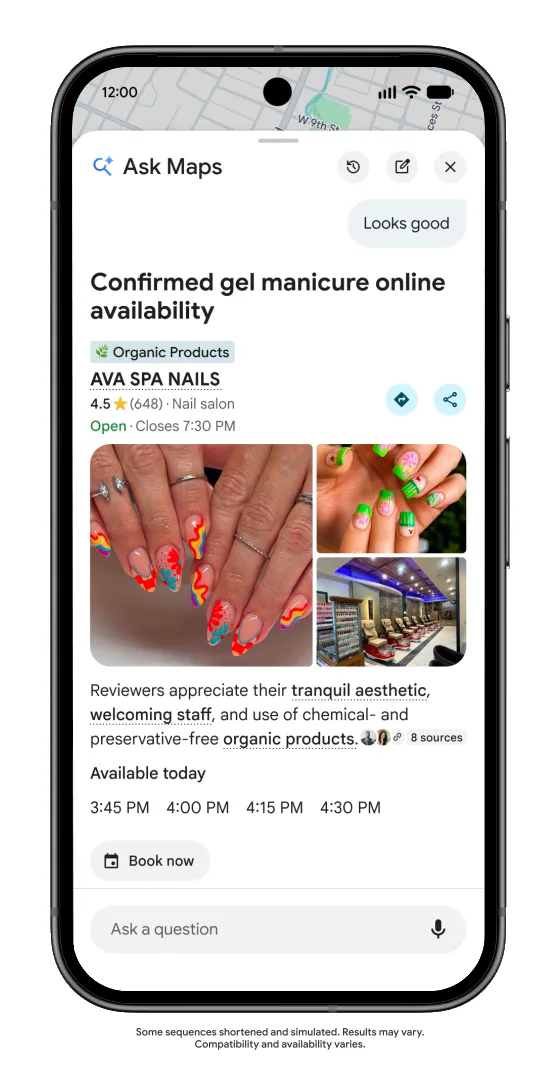
If you don’t see Check for me, you can still do the listing, booking page, and phone check below. Google says availability varies by state. See Google Maps Help for the steps and eligibility.
Say what the customer can count on
In our repair-shop example, the customer asks for a Friday afternoon brake inspection. The shop checks its calendar and can confirm a 2 p.m. drop-off. The time the inspection will start is still open.
Here’s how the person answering the phone could explain it once they’ve checked the schedule.
“We can confirm a 2 p.m. drop-off on Friday. Plan to leave the car with us. We’ll let you know when we expect to get it into the bay.”
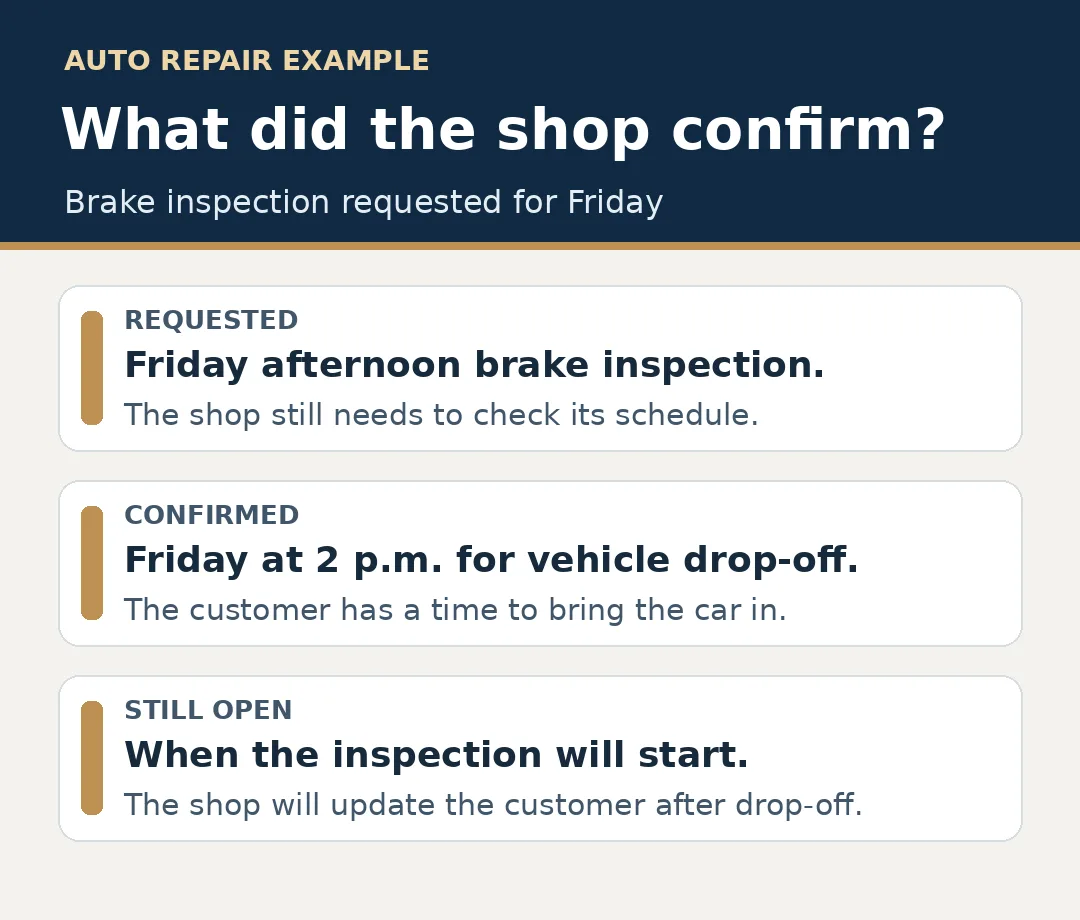
If the person answering can’t see the schedule, have them say so and explain what happens next. For example, “I’ll check with the shop and call you back by 3 today.” Make sure somebody owns that callback.
Use the same wording online. If a form sends your team a request to review, label the button “Request a time.” Then tell people how they’ll hear back. If the customer can reserve a drop-off directly, say “Book a drop-off” and explain when you’ll update them about the work. For a pet groomer, the same question might be whether 10 a.m. is check-in or when the groom starts. For a home repair business, it might be whether the time is for an estimate or the repair itself.
Follow one appointment from Maps to your team
- Open your business listing on your phone. Check the phone number and tap the appointment link if you use one. Make sure it leads to the page where someone can take the next step for that service. Google’s guide to managing Business Profile links shows where to review those links.
- Read the booking page as if you needed a time this week. Can you tell what you’re asking for, whether the time is confirmed, and what happens next? If requests need a staff review, make sure someone opens the inbox or calendar where they arrive. Here’s how I’d check where those requests go.
- Call your own business and ask the same question. If the call goes to voicemail, listen for what the customer hears and check who returns the call. If someone answers, see whether they can check the same schedule and explain what they’re able to confirm.
Where to review Google’s automated call setting
If you manage a verified Google Business Profile, Google puts Bookings and inquiries from customers under More → Business Profile settings → Advanced settings → Google automated calls and text messages. That’s where Google lets businesses review whether they receive its automated calls and texts for customer bookings and inquiries. The Ask Maps launch announcement leaves open how that setting applies to this particular rollout. See Google’s instructions for businesses.
Start with the appointment you handle most often
You can do this check using the listing, booking page, and phone you already have. Pick one common appointment and ask a coworker to follow it from start to finish. If they can’t tell what time they have or how it gets confirmed, fix the first place they got stuck.
If your listing and booking page regularly give customers different answers, we can help you work through the handoff. See how Vantage 243 helps with local SEO and business profiles.
Featured photo by Artem Podrez on Pexels.