Say a customer is planning to pick something up on Friday after Thanksgiving. Google says you’re open until five, so they head over after lunch. Your holiday pickup window ended at noon. You had the right hours on a sign by the register, but they never saw it.
Before the holiday, I’d look up your business on your phone and make the same trip online that a customer would. Check Google, open your website, and go as far as the place where you’d book, order or get directions. See what each one tells you about the day you plan to go.
In 2026, Thanksgiving falls on Thursday, November 26, and Small Business Saturday is November 28. Check Friday and the weekend too, especially if they follow a different schedule from the holiday itself.
Check the dates in Google Search and Maps
If your Google Business Profile shows regular customer-facing hours, open Edit profile, go to Hours, and find Special hours. Review a suggested holiday date or add a date yourself. Enter the hours you’ll be open, or mark that date closed, then save. Google recommends confirming official holiday hours even if you’re keeping your usual schedule. If you’ll be closed for seven days in a row or longer, Google directs you to its temporary closure setting. Google’s Special hours instructions
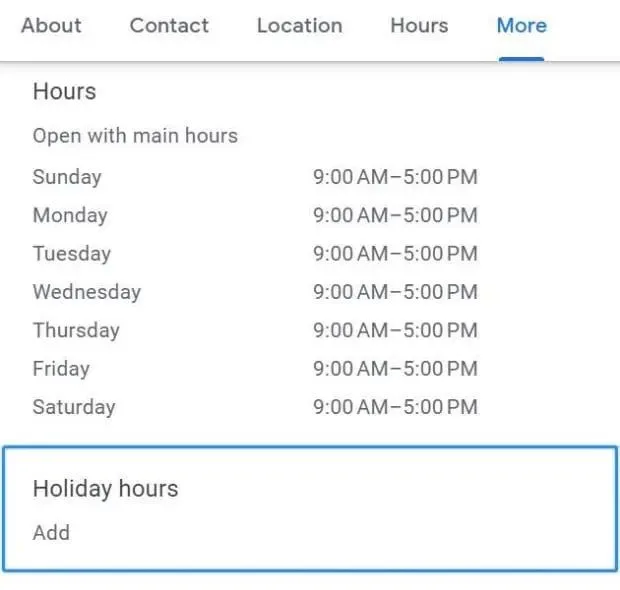
BrightLocal’s holiday-hours walkthrough shows where to add a date and how a closure can appear on a public listing.
Once the edit is live, look up the public listing in Search and Maps. Open the hours and check the actual dates you changed. If your edit is still pending, check again before the holiday. Google’s guide to edit status
Google’s guidance says businesses that operate only by appointment should leave hours off their profile. If that’s how you work, make the holiday change clear on the page people use to request an appointment. Tell them when you’ll be back and whether someone needs to confirm their request. Google’s business-hours guidelines
Put the holiday notice where someone takes the next step
If your Friday pickup window ends at noon, put that beside the pickup option. If you take appointment requests over the weekend and review them on Monday, say that above the form or in the receipt people get after submitting it. Check whether your booking calendar still shows times you meant to block.
Here’s a fictional example for an appointment-only business.
We’re away Thursday, November 26, and Friday, November 27. You can still send an appointment request. We’ll start reviewing requests on Monday, November 30, and will confirm your appointment by email.
Use plain text so people can read the dates on their phone. If you’re also updating a voicemail or automatic reply, use the same wording for the dates and reopening. Our holiday FAQ guide has a simple way to turn one confirmed schedule into several customer replies.
Check it once more before the holiday
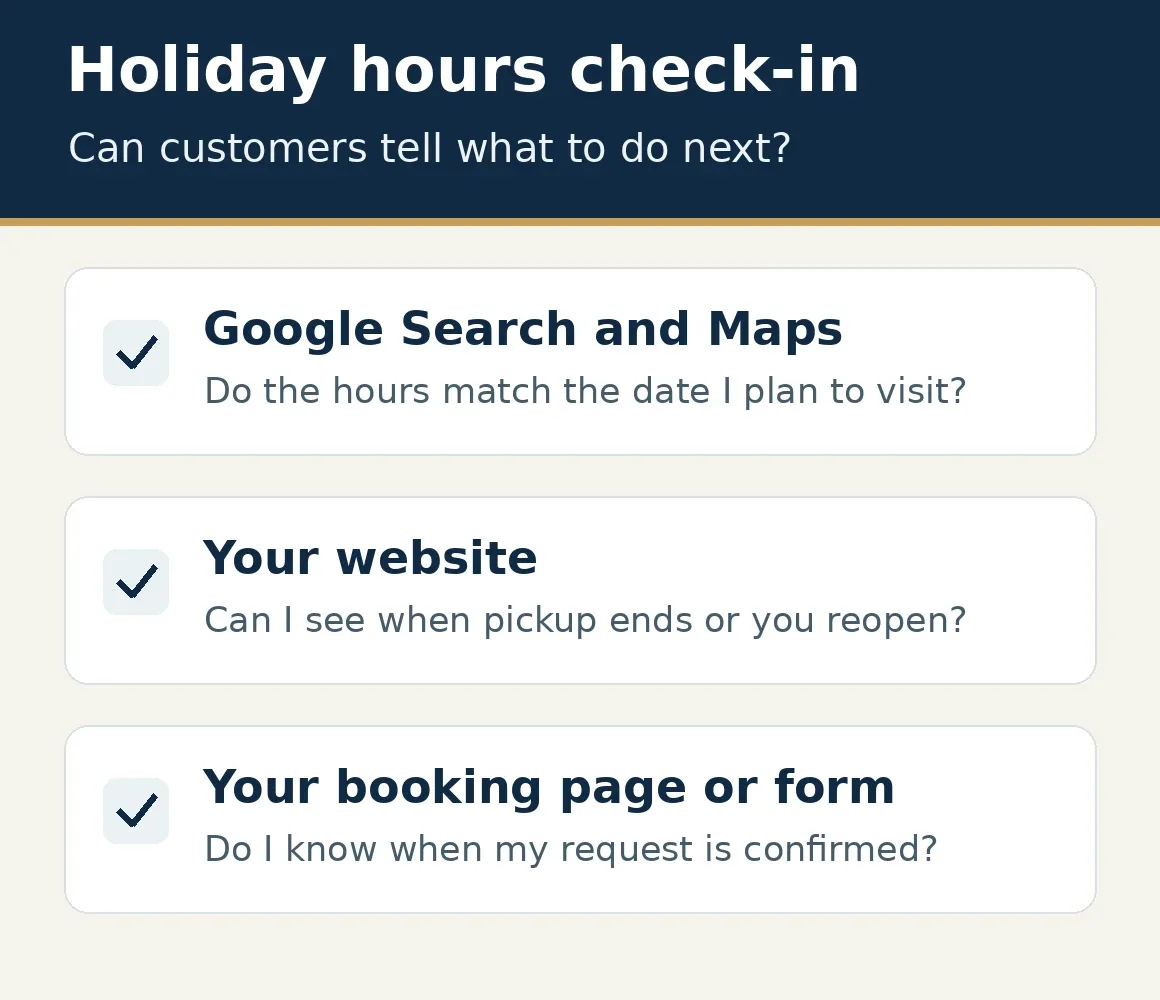
Ask someone who hasn’t seen the schedule to look up your business and tell you when they could visit, pick up an order, or expect you to review an appointment request. See where they found their answer. That’s the spot I’d fix first if they came away with the wrong date or time.
Decide who will take down the website notice and restore the voicemail greeting when you’re back. It’s easy to get the holiday message up and forget that customers are still hearing it the following week.
If Google and your website regularly give customers different answers, our Local SEO & Business Profiles service can help you work out where the information gets out of sync.
Photo by Tim Mossholder on Unsplash. Illustrative stock photograph.